Build workflows through conversation
Start by asking Workrun to help with a task. When you want to repeat it, turn the process into a workflow. This guide follows a sales-data example from a one-time analysis to reusable automation.
Make these three requests in the same conversation:
Help me analyze this sales data. ↓I'll need to repeat this. Turn it into a workflow, but don't run it yet. ↓Could you run it for me now?You do not need to choose nodes and connections up front. First check the analysis, then work with the assistant to decide which steps to keep.
Watch the full walkthrough
Section titled “Watch the full walkthrough”The recording follows the full sequence: attach the sales CSV, analyze it once, approve and save a workflow, then separately confirm execution. The recorded conversation is in Chinese.
Some waiting periods have been sped up for easier viewing. Actual processing time depends on the selected model, data volume, and runtime environment.
1. Prepare the sales data
Section titled “1. Prepare the sales data”Configure provider credentials in Settings → Models, then choose a conversation model below the start-page composer. Planning and authoring use that model too; inspect generated Agent nodes for their execution models. See Configure model access.
Download the sample sales CSV, or save this content as a UTF-8 file named sales.csv:
date,product,quantity,unit_price2026-10-01,产品A,10,1002026-10-02,产品B,5,2002026-10-03,产品A,3,1002026-10-04,产品C,2,500The columns represent the date, product, quantity sold, and unit price. Sales amount for each row is quantity × unit_price. The Chinese product names mean Product A, B, and C. This small dataset is easy to check; you can also supply your own data and explain its fields and calculation rules.
This walkthrough starts in a workspace without a matching sales-analysis workflow. If one already exists, the assistant may reuse it and the steps can differ. File processing and workflow generation depend on available capabilities; configure any required Apps or MCP tools first.
2. Analyze it once
Section titled “2. Analyze it once”Use the start-page file picker to attach sales.csv, then send:
Help me analyze this sales data.The assistant handles the task using the attachment and available capabilities. For this small CSV, it can read and calculate directly before presenting an analysis. This first analysis does not require creating a workflow.
Check that it understands the fields and supports its conclusions with the source data:
| Check | Expected result |
|---|---|
| Sales records | 4 |
| Total quantity | 20 |
| Total sales amount | 3300 |
| Sales amount by product | Product A: 1300; Product B: 1000; Product C: 1000 |
Wording and presentation may vary. The sample has no costs, profit, currency, or earlier-period data, so it cannot establish profit, a currency unit, or period-over-period growth.
You can refine the analysis in the conversation, for example, “Also summarize sales amount by date.” Once it meets your needs, continue to the next step.
3. Turn the analysis into a workflow
Section titled “3. Turn the analysis into a workflow”Continue in the same conversation:
I'll need to repeat this. Turn it into a workflow, but don't run it yet.Workrun uses the earlier data and requirements to plan reusable automation. The Workflow plan card shows inputs, expected outputs, steps, assumptions, and acceptance criteria. Expand the details to inspect node choices, configuration, and dependencies.
Check that the proposal captures what you want to repeat:
- Accept new sales data on each run instead of embedding these four records.
- Calculate sales amount from quantity and unit price, then aggregate by the agreed dimensions.
- Return the summaries and analysis, explaining any missing required fields.
The assistant chooses nodes based on available capabilities; it does not need to reproduce a fixed graph. Request changes directly, for example:
Always summarize sales amount by product and date. If quantity or unit priceis missing, tell me rather than treating it as zero. Keep those summariesin the output, then provide the analysis.The assistant saves a revised plan. Resolve open questions and unavailable dependencies, then review the latest version.
Approve the plan and save the workflow
Section titled “Approve the plan and save the workflow”Use the plan’s approval button when it is ready. Approval binds that exact version; revisions require another review. Explicit acceptance in conversation is also supported, but the button avoids ambiguity.
Once saved, open the workflow from the card to inspect inputs, nodes, data flow, and resource connections. It is an ordinary workflow that you can edit on the canvas or revise through conversation.
At this point, the workflow is saved and has not run. Your request not to run it still applies. A run request cannot bypass an unapproved plan; finish plan approval and saving before the next turn.
If a suitable reusable workflow already exists, the assistant may point to it instead of creating a duplicate. Check that it meets your ongoing needs.
4. Run the saved workflow
Section titled “4. Run the saved workflow”After saving, send in the same conversation:
Could you run it for me now?The assistant uses the conversation to select the workflow and this run’s inputs. Supply missing required values through the conversation or input form if prompted.
A separate Workflow execution confirmation card appears before execution. Expand the inputs and check that the selection is the saved sales-analysis workflow and the data corresponds to this CSV. If inputs contain an attachment reference or parsed data, check that they match the source file.
Confirm execution to start. If the selection is wrong, use the reselection action; any replacement still needs confirmation. A changed definition or inputs before dispatch also requires a new confirmation.
Plan approval saves the workflow. Execution confirmation starts this run. They are separate actions.
5. Check the results and use it again
Section titled “5. Check the results and use it again”Follow progress, node outputs, and the final analysis in the conversation, opening execution details when needed. Check the results against step 2: total quantity 20, total sales amount 3300, and the same per-product totals.
The direct analysis and workflow output can use different wording, but the calculations should agree for identical data and rules. Graph and configuration validation still needs to be followed by checking actual results.
Next time, provide new sales data and ask to use this workflow. Reruns use the latest saved definition, including canvas edits, rather than regenerating the workflow. See Runs, debugging, and traces for output inspection and troubleshooting.
6. Revise the workflow and review its changes
Section titled “6. Revise the workflow and review its changes”To adjust a saved workflow, identify it in the same conversation and describe the changes you want. For example:
Give this workflow's CodeAct and Agent nodes descriptive names.Only change their names; keep the instructions, models, and connections.Don't run it yet.Check the target in the Workflow update plan, then approve the changes. Approval updates the existing workflow; execution still requires separate confirmation.
Open View changes from the conversation
Section titled “Open View changes from the conversation”After the update is saved, a change card in the conversation summarizes additions, modifications, and removals. Select View changes to open the comparison for that update. This example modifies two nodes without adding or removing nodes.
The screenshots below use the Chinese interface.
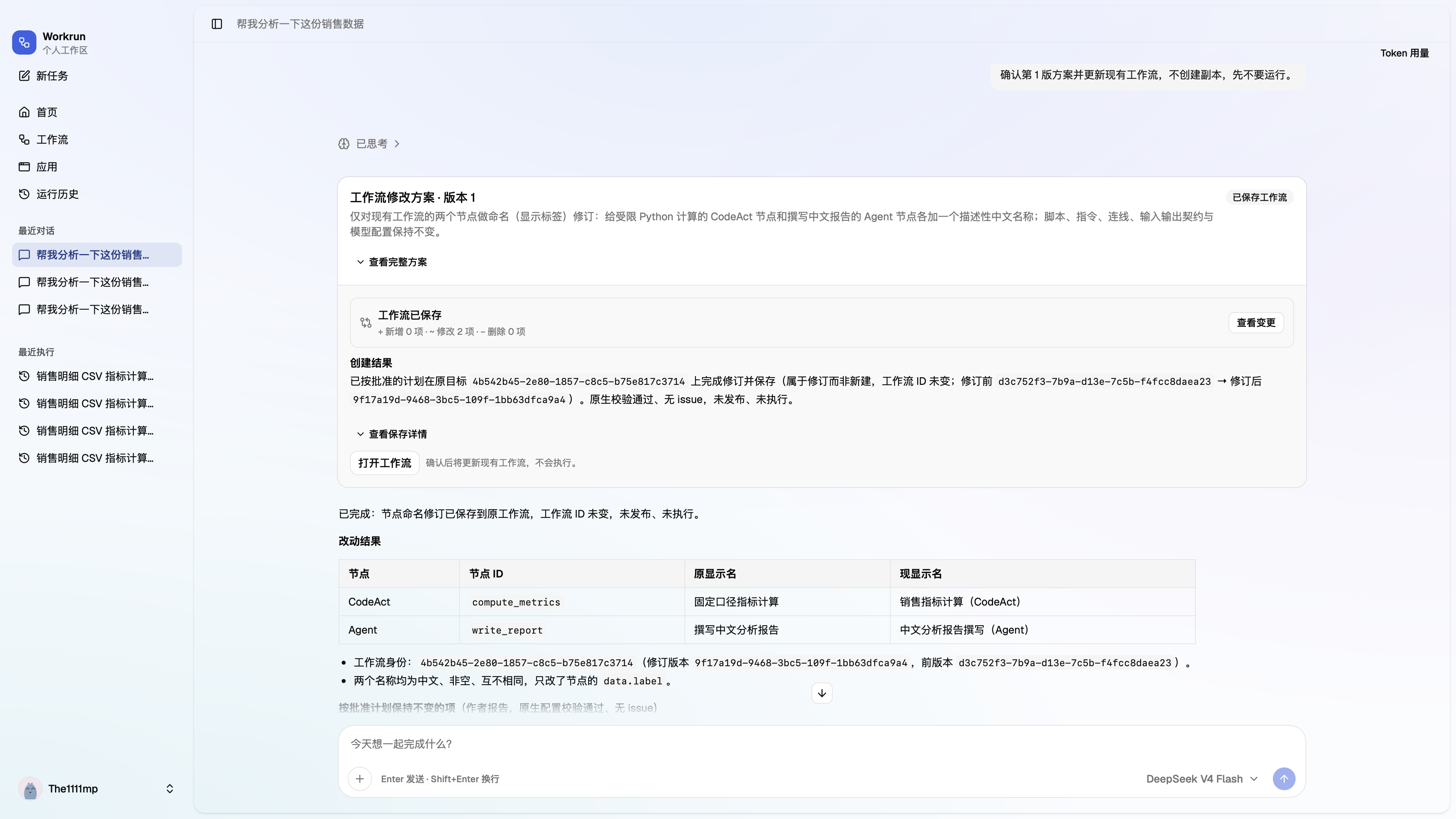
The dialog compares the two saved versions before and after this update. Later edits do not change this historical comparison. Open the workflow details to edit or inspect its latest state. Deleting a conversation removes its unused change snapshots while retaining current workflow versions, snapshots referenced by other conversations, and execution records.
Change details: see exactly what changed
Section titled “Change details: see exactly what changed”The dialog opens on Change details. The summary shows the number of changes and affected fields. The left navigation groups changes by nodes, connections, and workflow settings; the main panel shows each field’s Before and After values.
For a node rename, compare the old and new names directly. When only names changed, the summary also notes that connections and other settings are unchanged. Longer text uses a line-by-line comparison with expandable unchanged context.
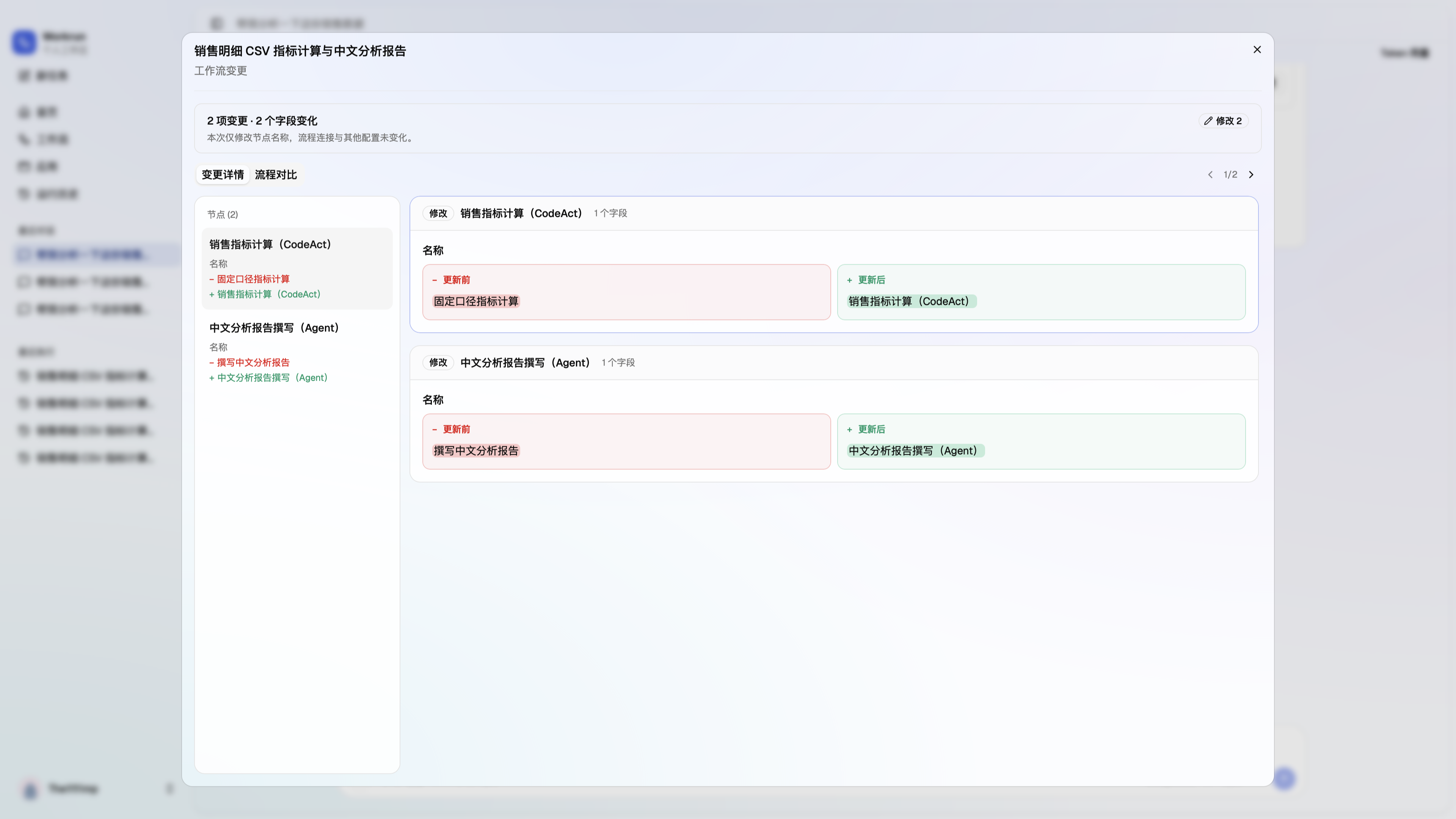
In this example, the calculation node becomes “销售指标计算(CodeAct)” (Sales metrics calculation), and the report node becomes “中文分析报告撰写(Agent)” (Chinese analysis report writing). Each changes one name field, so the summary reports 2 changes · 2 fields changed.
Select an entry on the left or use the previous and next controls to review each change. Layout changes, such as moved nodes, appear separately so you can distinguish positioning from configuration changes.
Flow comparison: locate changes in the graph
Section titled “Flow comparison: locate changes in the graph”Switch to Flow comparison to inspect the nodes and their connections on the canvas. Toggle Before / After to view either saved graph. Select a change on the left to locate its nodes and inspect the field comparison in the detail panel, to the right on wide windows or below the canvas on narrow windows.
Nodes keep the same type colors as the workflow editor. Separate badges identify additions, modifications, and removals, while a prominent outline highlights the selected changed node. Read the badges to identify the change type rather than relying on the node’s background color.
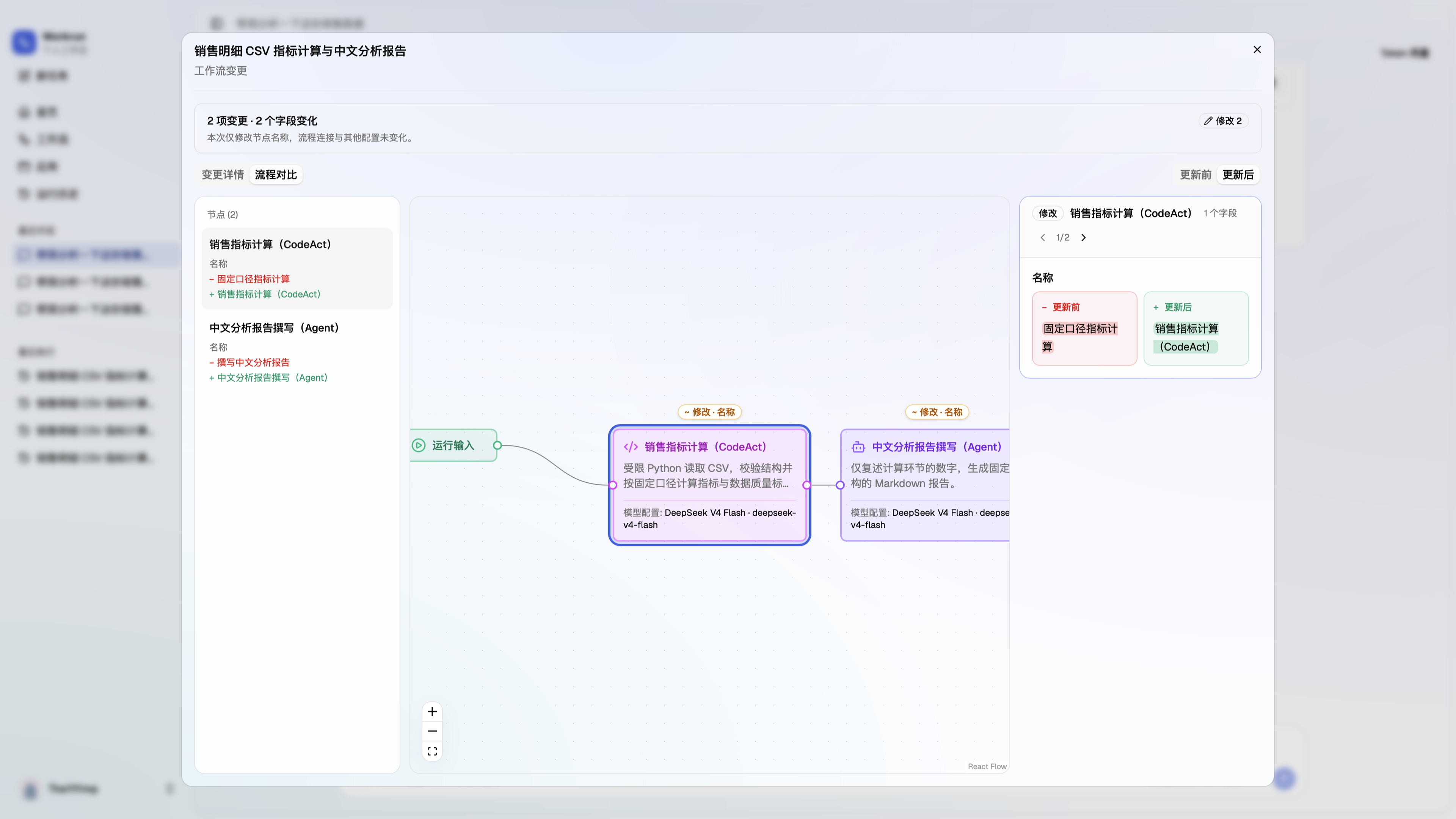
This canvas is read-only. Open the workflow details to move nodes, edit configuration, or reconnect steps, or request another revision in the conversation.
7. Inspect the conversation’s token usage
Section titled “7. Inspect the conversation’s token usage”Select Token usage at the top right of the conversation to inspect recorded consumption across the analysis, planning, authoring, and workflow execution.
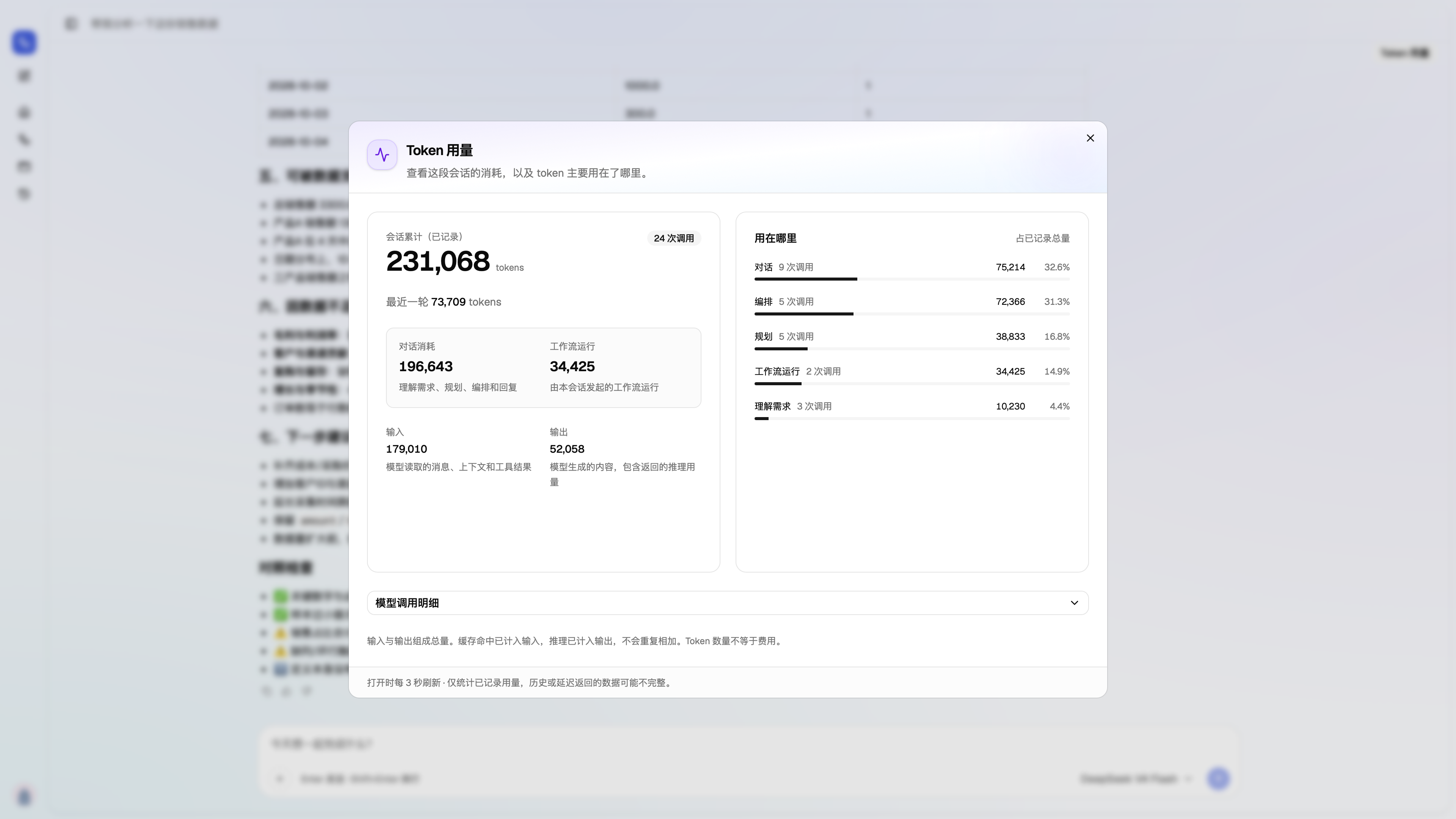
The left panel shows the conversation total, latest turn, input, and output, separating two groups:
- Conversation consumption: understanding the request, planning, authoring, and replies.
- Workflow execution: workflow runs initiated by this conversation.
The right panel breaks usage and call counts down by purpose. Expand the model-call details to inspect individual calls. The screenshot records 231,068 tokens in total: 196,643 for conversation consumption and 34,425 for workflow execution. These are figures from this demonstration; actual usage varies with the model, context, and processing steps.
Input and output make up the total. Cache hits are included in input, and reported reasoning usage is included in output; do not add them again. The panel counts recorded usage, so delayed or missing records can leave the totals incomplete. Token counts do not directly represent cost.
Recover and troubleshoot
Section titled “Recover and troubleshoot”Reopening a conversation loads its latest 50 messages. Scroll up and select Load earlier messages to retrieve an earlier page while keeping your reading position.
| Situation | What to do |
|---|---|
| The attachment cannot be read or its format is unsupported | Check the file and try this UTF-8 CSV; other formats may need additional capabilities. |
| The plan cannot be approved | Answer its questions and resolve listed dependencies, then review the updated version. |
| A revised plan is waiting again | Confirm the new version; approval does not carry across revisions. |
| A conversation was closed while waiting | Reopen it to restore the pending interaction. Continue alone does not approve it. |
| Creation failed or was interrupted | Inspect the plan outcome and workflow catalog; interrupted authoring is not silently replayed. |
| Results differ from the sample | Check this run’s inputs, field mappings, calculation rules, and node outputs. |
Direct MCP/Tool App calls can display a separate tool-call confirmation according to their policy. A Human Review node inside a workflow is another pause during execution; see Human review and resume.
The start-page assistant is distinct from a workflow’s Chat mode. The assistant handles tasks, plans, and selects workflows; Chat mode controls how an individual saved workflow handles multiple messages and session state. See Workflows and state.