Open and run through Deeplinks
Use workrun://v1 links to open or run a saved App or Workflow from a browser, shortcut, or another application. A new run always requires confirmation in Workrun. For unattended execution at a configured time, see Scheduled runs.
Copy a link
Section titled “Copy a link”- Save the target in the intended workspace. Install the App, or prepare the Workflow’s App dependencies, before running through a link.
- On an App detail page, select External invocation. For a Workflow, select External invocation from its actions menu.
- For a Workflow, edit the optional input object in the JSON editor. Use the saved Workflow’s input keys and value types.
- Copy Open link or Run link, then use it in your browser, shortcut, or application.
The input object is used only to generate the current run link and is not saved to the Workflow. Reopening the dialog resets it. Copy the run link to reuse the same parameters without configuring them again.
Links identify targets in the current workspace; they do not export, import, or install Apps or Workflows. System protocol registration should be verified with an installed desktop build, particularly on macOS. A development server alone is not sufficient to verify system-level invocation.
Workflow external invocation dialog
Section titled “Workflow external invocation dialog”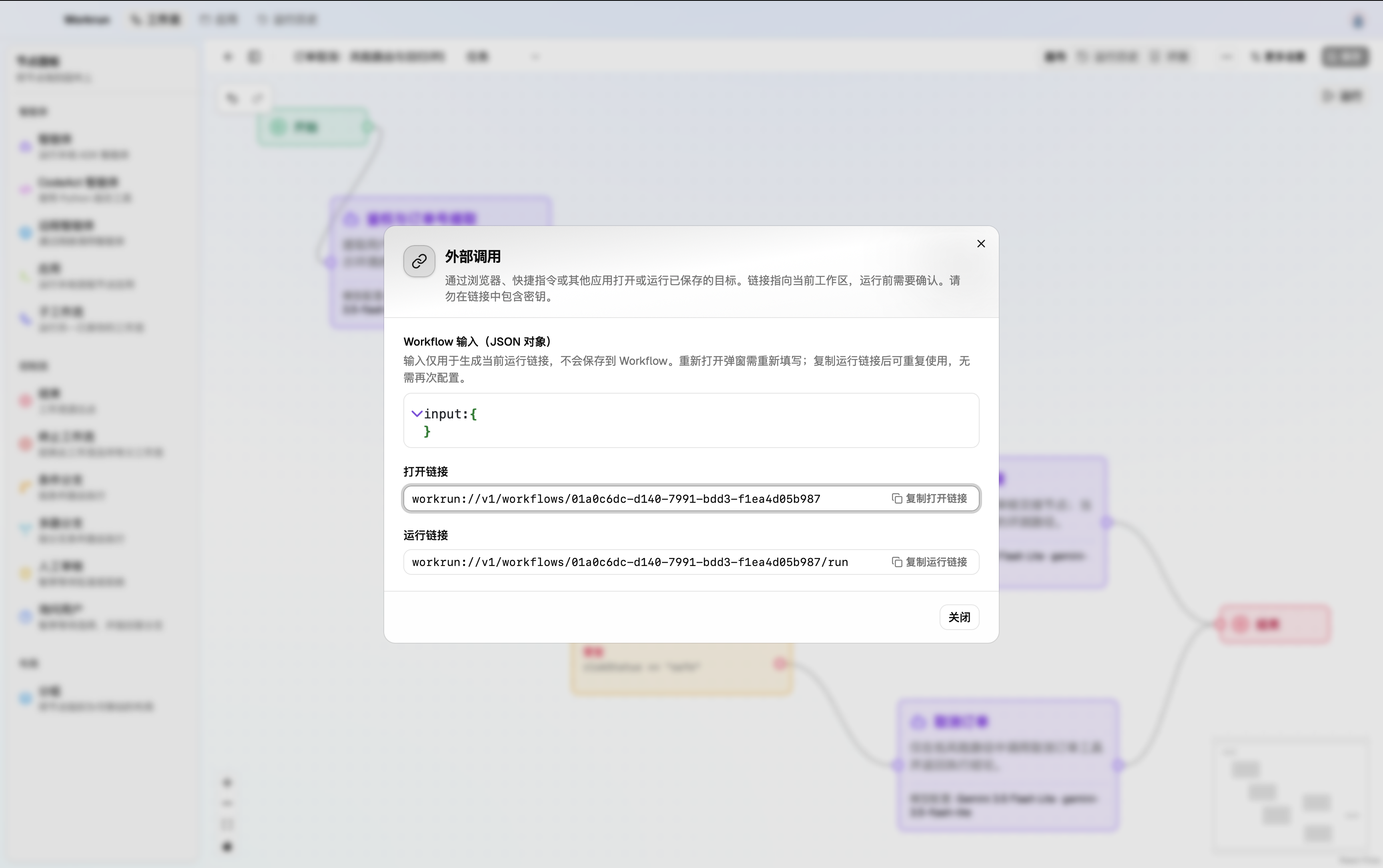
App external invocation dialog
Section titled “App external invocation dialog”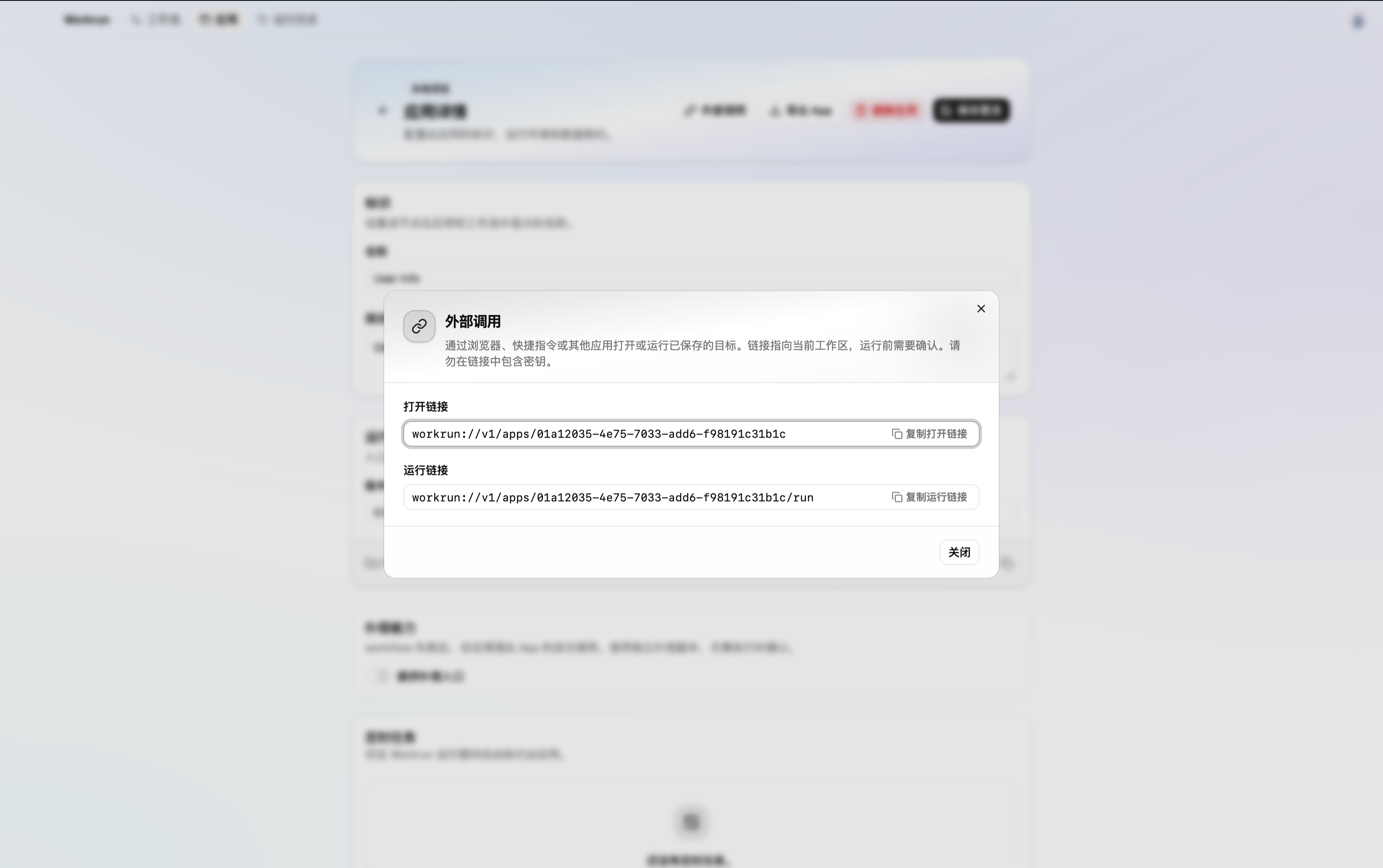
What happens when a link opens
Section titled “What happens when a link opens”| Link | Behavior |
|---|---|
| Open App | Open the App detail page without running it. |
| Run App | Open the App list and show confirmation with the App name and version. After confirmation, open the output drawer on the list. |
| Open Workflow | Open the Workflow detail page without running it. |
| Run Workflow | Open the Workflow list and show confirmation with the Workflow name and input form. After confirmation, open the detail page and its execution output drawer. |
Canceling confirmation leaves the corresponding list visible. Finishing execution keeps the App list or Workflow detail page visible with its output. Workflow execution uses the existing run controls, including supported approvals and continuation actions.
Workrun waits for startup and, where required, login before handling the request. Pending links survive WebView reloads while the desktop process remains running; exiting the desktop process discards pending confirmations. If the workspace changes while a request is pending, dismiss it and reopen the link in the intended workspace.
Link format
Section titled “Link format”workrun://v1/apps/{appId}workrun://v1/apps/{appId}/runworkrun://v1/workflows/{workflowId}workrun://v1/workflows/{workflowId}/runThe ID is the saved target’s ID, not its display name. Prefer copying generated links instead of constructing IDs manually.
Only run links accept requestId. Only Workflow run links accept input, which must be a URL-encoded JSON object. For a Workflow with a text input key named message:
workrun://v1/workflows/{workflowId}/run?input=%7B%22message%22%3A%22hello%22%7D&requestId=example-1To construct the query in JavaScript:
const url = new URL(`workrun://v1/workflows/${workflowId}/run`);url.searchParams.set('input', JSON.stringify({ message: 'hello' }));url.searchParams.set('requestId', 'example-1');const link = url.toString();The message key is only an example: use your Workflow’s saved schema. Unknown keys or incorrect value types are rejected. Missing required fields can be completed in the confirmation form. Chat Workflow input uses the input text key. File inputs require existing artifact references accessible in the current workspace; a local path or URL is not an uploaded file. See File inputs and artifacts.
Avoid duplicate execution
Section titled “Avoid duplicate execution”requestId is optional and scoped to the current workspace. It is not added by the link-generation dialog; add it when constructing a link for a caller that needs deduplication.
- Reusing the same
requestId, target, and original link input opens the existing run instead of creating another, including after restarting Workrun while that run record remains available. - Reusing the same
requestIdwith a different target or original input reports a conflict. Use a new value for a new business execution. - Without
requestId, each new invocation can create a new run. Duplicate pending deliveries may be combined, so do not use repeated clicks as an execution counter.
Deduplication compares the original link request, not edits made later in the confirmation form. Reopening a completed run does not rerun it.
Results and troubleshooting
Section titled “Results and troubleshooting”Deeplink-triggered runs are labeled External link in run history. Inspect App stdout/stderr or Workflow events in the output drawer, and reopen saved results through history. See Runs, debugging, and traces.
| Problem | What to check |
|---|---|
| The operating system does not open Workrun | Install the desktop build and verify protocol registration and any browser prompt to open external applications. |
| The target cannot be found | Confirm the current workspace and that the target still exists. Links do not select or switch workspaces. |
| App or Workflow dependency unavailable | Install the App or prepare the dependencies inside Workrun before reopening the link. |
| Invalid input | Use a JSON object with the saved schema’s keys and types, then encode it with URLSearchParams. |
| Request ID conflict | Reuse the original request exactly, or assign a new requestId for a new execution. |
Links are limited to 32,768 bytes. Unknown or repeated query parameters, unsupported versions, and URL fragments are rejected. App input parameters, confirmation-free execution, and result callbacks are currently unsupported. Keep secrets and file contents out of links: URLs may be retained in browser history and shortcut configuration.